 mockvid
Why not just record your screen?
Because the recording shows you using a browser, not the website. Your cursor drifts across the frame. The tab bar, the bookmarks and the OS menu bar sit at the top. And the scroll itself gives it away: a wheel or trackpad moves in jerks, so the page lurches instead of gliding. None of it is fixable in the edit, because it is baked into the footage.
A website scroll recording is captured differently. The page is opened in a real browser on a server, scrolled programmatically at a constant speed, and recorded frame by frame. Nothing is filmed, so there is nothing to crop out.
Screen recording vs automatic capture
| Loom, QuickTime, OBS | Mockvid | |
|---|---|---|
| Cursor in frame | Yes, and it moves | None |
| Browser and OS chrome | Tab bar, bookmarks, menu bar | Page only |
| Scroll motion | Follows your wheel, uneven | Constant speed, eased |
| Mobile version | Separate session on a device or emulator | Same run, same URL |
| Redoing it after a change | Record the whole pass again | Paste the URL again |
| Resolution | Whatever your display is | 1920x1080, rendered at 1.5x |
The mobile column is the one that usually decides it. Filming a phone means a device, a cable and a second edit; emulating one means resizing a window and hoping the site responds. Here both viewports are captured from the same paste, and the mobile scroll is deliberately timed to match the desktop one so the two clips end together.
What you get
- Two MP4 files, H.264. Desktop at 1920×1080, mobile at 584×1266.
- Rendered at a 1.5 device pixel ratio, so the site's text is genuinely sharp rather than an upscaled screenshot.
- 30fps, or 60fps when the smoother capture mode kicks in.
- Named after the domain —
site-desktop-yoursite-com.mp4— so they stay findable in a downloads folder. - No frame, no background, no branding. Just the page, edge to edge, ready to drop into your own edit.
Where to find the download
Generate the capture first, then open the snapshot menu — the camera icon next to the Export button, arrowed below. Under Raw site capture you will find Site video · Desktop and Site video · Mobile.
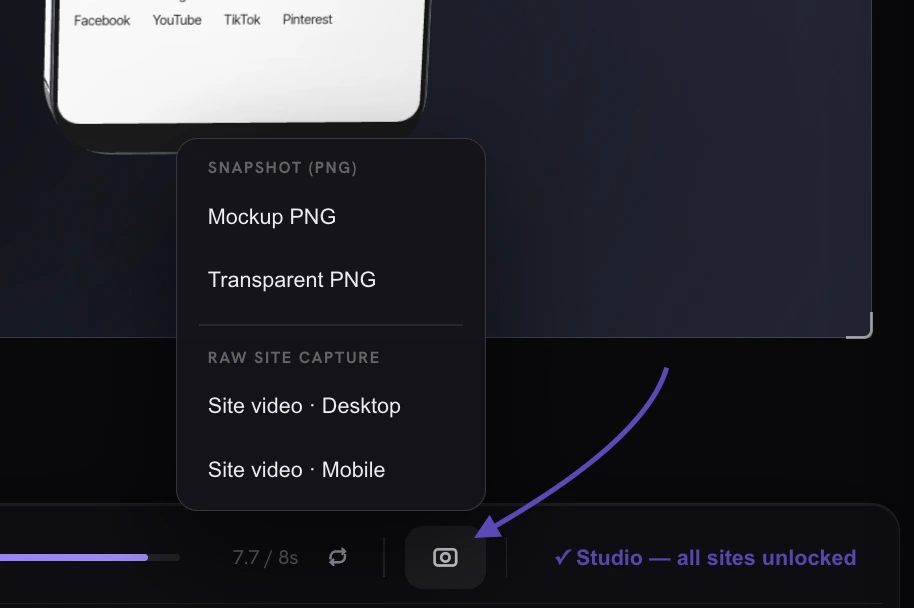
The two raw downloads sit under the PNG snapshot options in the same menu. They unlock with the one-time $9 domain unlock.
When to take the raw capture instead of the 3D mockup
Most people here want the finished 3D device mockup: the site staged in a lit scene with camera movement, ready to post. The raw capture is the other half of the tool, and it earns its place when you are the one doing the staging.
- You have an edit already. The footage drops into Premiere, Final Cut, After Effects or CapCut as a plain clip, to composite into your own frame or brand template.
- You need a specific background. No scene, no lighting, no reflection to work around.
- It is a piece of a longer video. A product walkthrough, a case-study film, a course module where the site is one shot among many.
- You want desktop and mobile side by side. The matched scroll timing means you can cut them together without retiming either one.
If you would rather skip the edit entirely, the website mockup video page covers the automatic route.
Record the last site you shipped.Free to generate, no account, no editing.
Paste a URL →How the capture works
- The page is loaded in a real browser on a desktop viewport and a phone viewport, with the right user agent for each, so responsive layouts resolve exactly as they would for a visitor.
- The scroll is driven programmatically at a constant, eased speed derived from the real page height, so a long page does not race and a short one does not crawl.
- Frames are captured directly from the renderer rather than filmed, then assembled with their real timestamps. Sites with heavy animation are captured in a smoother mode automatically.
- Cookie banners can be hidden and lazy-loaded images are given time to arrive before the scroll reaches them.
Who uses it
Web designers pull the raw footage into portfolio edits and case-study reels. Agencies and studios use it as b-roll inside client videos. Founders drop a clean scroll of the landing page into demo videos and investor decks. If you are weighing it against recording by hand, the Loom comparison goes through it in detail.
FAQ
What is a website scroll recording?
A video of a web page scrolling from top to bottom, captured from the live site rather than filmed off a screen. No cursor, no tab bar, no OS chrome, and an even scroll speed instead of one that follows your wheel.
What resolution is the raw capture?
Desktop is 1920×1080, mobile is 584×1266, both rendered at a 1.5 device pixel ratio so text stays sharp. H.264 MP4 at 30fps, or 60fps in the smoother capture mode.
Does it record the mobile version too?
Yes, from the same URL in the same run. The mobile scroll duration is matched to the desktop one so both clips end together and cut side by side without retiming.
Is the raw scroll recording free?
Generating and previewing is free with no account. Downloading the raw site videos needs the one-time $9 unlock for that domain, which also removes the watermark and enables HD to 4K exports of the 3D mockup.
Do animations and lazy-loaded images show up?
Yes. The page runs in a real browser, so scroll-triggered reveals, parallax, carousels and video backgrounds play as they do live.
What if a site blocks automated capture?
A few sites refuse automated browsers outright. When that happens you can upload your own screen recording instead and use the rest of the tool on it.